Patriotic July 4th USA Banner: A Practical Guide to Digital Crafting Success
There is a distinct joy in creating your own decorations for the Fourth of July. While you can buy mass-produced items at big-box stores, nothing quite compares to the personal touch of a handmade Patriotic July 4th USA Banner. This specific digital design offers a flexible solution for anyone looking to celebrate American independence with style, whether you are hosting a backyard BBQ or setting up a booth for a local small business.
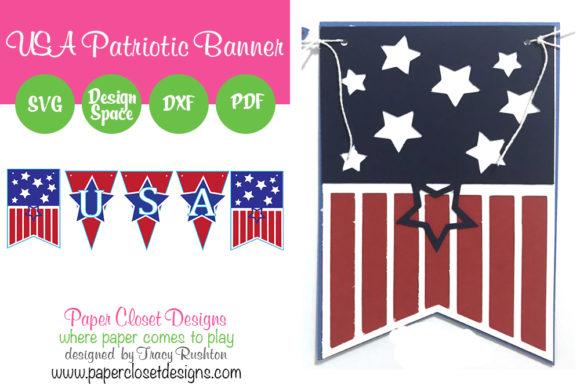
The core appeal of this file lies in its versatility. The design features individual pennants that measure approximately 4″ x 6″, but unlike pre-cut fabric bunting, these digital assets allow you to resize them to fit any space. You can create as many pennants as needed to span a long porch railing or keep it compact for a window display. However, before you open your cutting software and start slicing cardstock, there are several critical details regarding file formats, material choices, and expectations that often trip up both beginners and experienced crafters.
Distinguishing Between Physical Goods and Digital Assets
The most common misunderstanding when purchasing this type of listing is assuming you will receive a physical product in the mail. It is crucial to understand immediately that this is a DIGITAL CUT FILE. No physical banner will ever be shipped to your door. If you are expecting a ready-to-hang decoration, this purchase will not meet your needs.
This distinction affects your timeline significantly. When you buy a physical item, you wait for shipping. With a digital file, you have immediate access once the download completes, but you must handle the entire production process yourself. This includes selecting your materials, loading them into your machine, cutting, weeding, and assembling the final piece. Failing to recognize this can lead to frustration if you need a decoration by tomorrow morning and haven't accounted for the hours required to make it from scratch.
Navigating File Formats and Software Compatibility
The package includes multiple file types: SVG, DXF, GSD, and a PDF template. Each serves a specific purpose, and choosing the wrong one for your equipment can result in errors or wasted time. The SVG file is generally the standard for Cricut Design Space and Silhouette Studio, offering vector paths that scale without losing quality. The DXF format is often preferred by Brother Scan and Cut users or those using older versions of cutting software.
A frequent mistake involves trying to import a complex layered file into software that doesn't support it, or attempting to use the PDF template as a cut file rather than a guide. The PDF included is a printable template meant to help you visualize the layout or print out a guide for hand-cutting, not a direct instruction for your machine to follow. Always check your cutter's manual to ensure it supports the specific extension you have downloaded.
If you are using Cricut Design Space, remember that the files come zipped. You must unzip the folder before uploading. Furthermore, while the file includes a version optimized for Design Space, importing an un-zipped or corrupted archive can cause the software to crash or fail to render the shapes correctly. Taking a moment to verify your file integrity before starting a project saves significant troubleshooting time later.
Material Selection and Cutting Precision
The prompt suggests making the banner unique by using your favorite cardstock and printed papers. This is where creativity meets technical limitation. Not all cardstock cuts cleanly on every machine. Thin, flimsy paper may tear during the weeding process, while thick chipboard might require multiple passes that wear out your blade prematurely.
When resizing the pennants, be mindful of the aspect ratio. If you stretch a 4″ x 6″ pennant to become extremely tall and narrow, the internal details—like the shadows on the USA letters or the points on the stars—may become too thin for your machine to cut accurately. This leads to "floating" pieces that fall off the mat or break during removal, ruining the aesthetic of your Patriotic July 4th USA Banner.
To avoid this, test your resized dimensions on a scrap piece of paper first. If you plan to use printed papers, ensure your printer settings match the weight of the media you are using. Printing on heavy cardstock requires different feed settings than standard paper; ignoring this can cause jams that delay your project entirely.
Assembly and Longevity Considerations
Once the pieces are cut, the assembly phase is often overlooked. A beautiful set of cut-out flags means little if they do not stay together. Using the wrong adhesive or string can cause the banner to sag or detach over time, especially if displayed outdoors.
For indoor displays, simple glue dots or double-sided tape work well. However, if you intend to hang this outside for a party, you must consider weather resistance. Standard cardstock will degrade quickly in humidity or rain. In this scenario, it is better to cut the pennants from vinyl or water-resistant synthetic paper. If you choose vinyl, you will need to apply transfer tape to move the designs onto your surface or assemble them carefully to ensure the adhesive holds.
Another subtle error is ignoring the orientation of the letters. The "USA Letters with shadows" are designed to be read left-to-right. If you accidentally flip a single letter during assembly, the word becomes nonsensical. Always lay out your letters on a flat surface before adhering them to the pennants to confirm the spelling is correct.
Evaluating Value Before You Download
Before clicking "buy," take a moment to evaluate what you actually need. Are you a professional marketer looking for high-resolution graphics for a website? These SVG files are designed for physical cutting, not web display, so they may not provide the pixel-perfect resolution needed for large-scale printing or digital screens. They are optimized for vector-based cutting machines.
Similarly, if you are a beginner who has never used a Cricut or Silhouette, buying a multi-format file might be overwhelming. Start with the provided PDF template to understand the design structure. Use the included instructions to practice on cheap paper before investing in expensive specialty cardstocks. This approach minimizes waste and builds confidence.
The value of this digital asset comes from the ability to customize. Unlike store-bought banners that come in fixed sizes and colors, this file allows you to match your exact theme. You can mix red, white, and blue with gold accents, or use patterned papers to add texture. The key to success is preparation: knowing your machine's limits, understanding the file formats, and selecting the right materials.
Final Thoughts on Preparation
Creating a Patriotic July 4th USA Banner is a rewarding way to celebrate the holiday, but it requires more than just downloading a file. By avoiding the pitfall of expecting a physical shipment, mastering the difference between SVG and PDF uses, and testing your materials before the big day, you ensure a smooth crafting experience. Whether you are a hobbyist wanting a quick DIY project or a small business owner looking to enhance your storefront, taking these practical steps guarantees a professional-looking result that truly shows your patriotism.